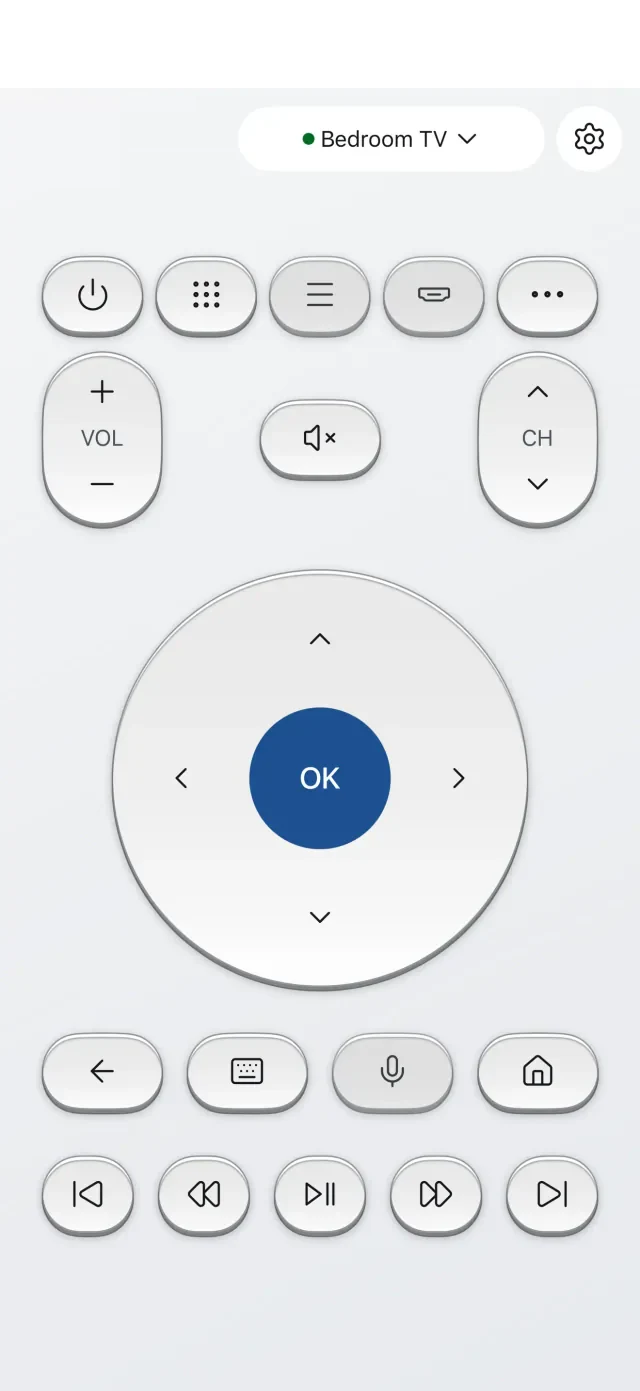
Remoti controls an Android TV or Google TV from your iPhone, over your home Wi-Fi.

Remoti remote with directional pad, volume and playback keys

What it does

Four layouts
Classic Pad, Large Controls, Touch Pad and Hybrid Pad. The keys are the ones you know, and Remoti remembers the layout you pick.
Swipe area
Swipe and tap to move around the TV menus.
Type from your iPhone
Type into supported text fields on the TV with your iPhone keyboard, in English or Vietnamese. Typing is part of Remoti Plus.
Your TVs, saved
Keep more than one TV and reconnect to the last one you used.
Simple setup
Put the iPhone and the TV on the same Wi-Fi, choose your TV, then enter the pairing code shown on the screen.

Who it is for

For people with an Android TV or Google TV who keep losing the remote, run out of batteries, or would rather type on a phone than pick letters with arrow keys.

Where it works

iPhone with iOS 17 or later. Works with Android TV and Google TV.

Links

See our services for businessesAll our products

Getting started

Turn on the TV and keep it awake. Connect the iPhone to the same home network as the TV. Open Remoti, choose your TV from the list, then type the pairing code that appears on the TV screen.

After that, Remoti remembers the TV. Next time it reconnects to the last TV you used.

If your TV does not show up

Check that the iPhone is on Wi-Fi, not only mobile data, and that both are on the same network. Guest Wi-Fi often keeps devices apart.

In the iPhone settings, open Privacy & Security, then Local Network, and allow Remoti. Wake the TV with its own remote, then search again.

Your information

Saved TVs and pairing stay on your iPhone. Text you type goes only to the TV you paired, and Remoti does not store it.

Got a problem to solve?

What is eating your time? We will suggest a way to handle it.